How to Connect WhatsApp to GoHighLevel Without the Official API (Step-by-Step 2026 Guide)
You want to connect WhatsApp to GoHighLevel.
You do not want to verify a Facebook Business Manager.
You do not want to pay per message.
You do not want to write Python scripts or manage webhooks.
This guide is your bible. It strictly follows the official WhatsLevel Onboarding Protocol. We will not skip steps. We will not add fluff. This is the exact procedure used to deploy WhatsApp at scale in 2026.
Cost Note: This integration requires a valid WhatsLevel subaccount.
🛑 STOP & READ: Prerequisites
Before you begin, ensure you have the following open in your browser tabs. Do not start until you have these three things ready:
GoHighLevel Agency View (You must be an Agency Admin).
WhatsLevel Dashboard (Logged in at app.whatslevel.com).
Your Smartphone (with WhatsApp or WhatsApp Business installed and logged in).
Estimated Time: 1 Minute
Technical Skill Needed: Beginner
📍 Phase 1: Preparation (Agency Level)
The most common mistake users make is skipping this step. GoHighLevel hides the ability to use “External Phone Providers” by default. We must manually unlock it.
Step 1.1: Access Agency View
Log in to your GHL account. Ensure you are at the Agency Level (switch organization if needed).
Step 1.2: Navigate to Settings
Click “Settings” at the bottom left of the sidebar. Then, look for the menu item “Phone Integration”. Click it.
Step 1.3: The “Link” Trick
You will see a list of all your sub-accounts.
Use the search bar to find the specific sub-account you want to connect.
Look to the far right side of that row.
You will see three vertical dots (⋮). Click them.
A small dropdown will appear. Select the option “Link to Lead Connector”.
Note: If it says “Unlink”, it means you have already done this. Leave it linked.

Why is this vital? This action tells GoHighLevel: “Allow this sub-account to carry its own custom telephony provider.” Without this, the option to select WhatsLevel simply won’t appear in the sub-account settings later.
📍 Phase 2: Connecting the Provider (WhatsLevel Dashboard)
Now that GHL is “Open” to connections, we must establish the secure handshake between the two servers.
Step 2.1: Initiate Connection
Go to your WhatsLevel Dashboard. Click on the Settings icon of the Whatslevel subaccount yo want to connect on the right side.
Step 2.2: OAuth Authorization
Click the button labeled “Connect GoHighLevel”.
Confirm the installation of Whatslevel by going down and clicking on the Next button
A GHL popup window will appear asking you to pick a sub-account.
Select the exact sub-account you prepared in Phase 1.
Step 2.3: The Critical Checkbox
This is the moment of truth. You will see a permission screen asking what data WhatsLevel can access.
You MUST check the box labeled “Whatslevel SMS”.

Step 2.4: Confirm
Click Proceed . The system will process the token exchange. If successful, you will be redirected back to the dashboard.
📍 Phase 3: Activation (Sub-Account Level)
The handshake is complete, but GHL is still using Twilio by default. We must flip the switch.
Step 3.1: Switch to Sub-Account
Go back to GoHighLevel and enter the sub-account you just linked.
Step 3.2: Phone System Settings
Navigate to Settings (bottom left) > Phone System.
Click on the horizontal tab labeled “Additional Settings”.
Look for the section labeled “Telephony Provider”.
Step 3.3: The Switch
You will see a dropdown menu. It likely currently says “LeadConnector” or “Twilio”.
Click the dropdown.
Select “WhatsLevel”. (If it’s not there, you failed Phase 1).
Click Save.

Technical Note: Once you save this, GHL stops routing SMS traffic to Twilio for this sub-account and starts routing it to WhatsLevel.
📍 Phase 4: The Client Connection (The QR Code)
Everything up to now was “Infrastructure Setup”. Now we need to connect the actual phone number.
Step 4.1: Generate the Portal Link
Inside the Settings of our WhatsLevel Subaccount, click the button “Generate Client URL” .
Click it to generate a unique link for this subaccount (in the future if you want to connect this Whatslevel subaccount to another GHL subaccount, you can generate a new Link).
Copy this URL.
Tip: You can add this link as a “Custom Menu Link” in GHL so your client can access it directly.
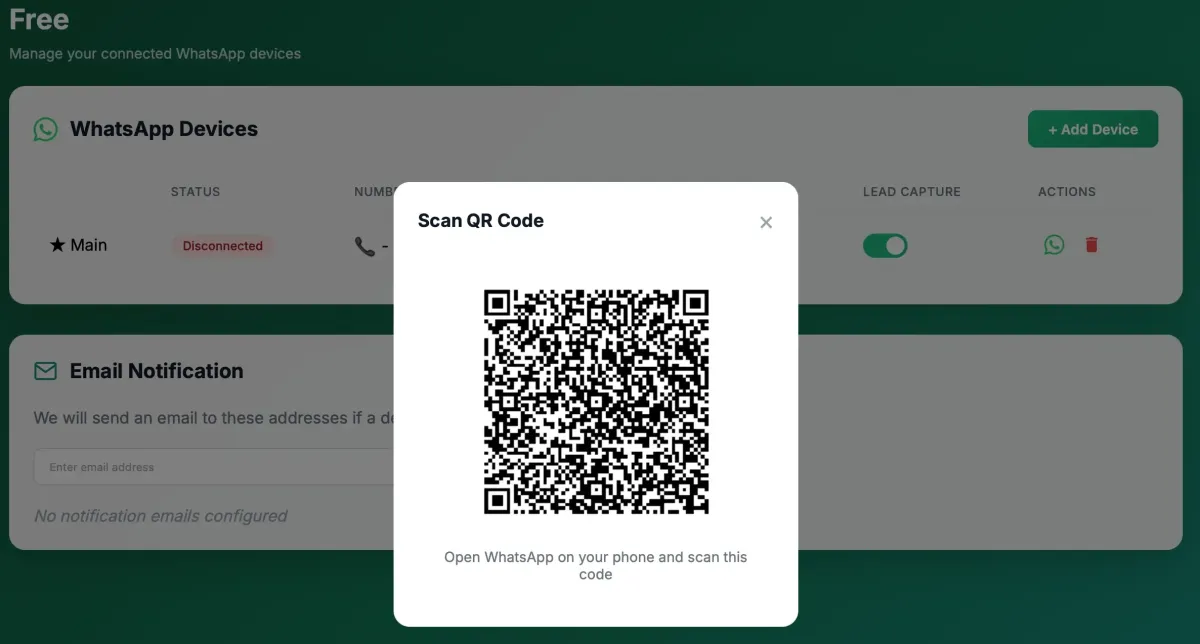
Step 4.2: Add Device
Open the Client Portal URL by going to that URL.
Click the green “Add Device” button.
A prompt will ask for a name. Enter an Alias (e.g., “Sales Iphone”).
Click on the WhatsApp icon of that Device
A QR Code will generate on the screen.
Step 4.3: Scan
Pick up the physical phone.
On iPhone: Settings > Linked Devices > Link a Device.
On Android: Three Dots > Linked Devices > Link a Device.
Scan the screen.

Step 4.4: Confirmation
The status on the dashboard will flip from “Connecting” to ONLINE (Green).
✅ Verification Checklist
Do not assume it works. Test it. We recommend this exact “Triple Test” Protocol:
Lead Capture Test:
Ask a friend (whose number is NOT in GHL) to send a WhatsApp message to the connected number.
Success Criteria: A new contact is created in GHL instantly, and the message appears in the “Conversations” tab.
Outbound Test:
Go to that contact in GHL. Click “Send SMS”. Type “Hello from GHL”.
Success Criteria: Your friend receives the message on WhatsApp.
Media Test:
Click the paperclip icon in GHL. Upload a PNG image. Send.
Success Criteria: The photo arrives on the phone clearly.
Troubleshooting Guide
“I don’t see WhatsLevel in the Provider Dropdown”
Fix: This is 100% caused by missing Phase 1. You must go to the Agency Level and “Link to Lead Connector”. If it is already linked, try “Unlinking” and “Relinking”.
“The QR Code won’t load”
Fix: Check your ad blocker. Or try opening the Client Portal URL in an Incognito window.
“Messages are green but not delivering”
Fix: Check if the physical phone is turned on. While WhatsLevel works without the phone being online 24/7, if the phone has been off for >14 days, the token expires. Re-scan the QR code.
Frequently Asked Questions
1. Does this disable standard SMS?
Technically, yes, for that specific sub-account. Since GHL only allows one “Telephony Provider” at a time, selecting WhatsLevel routes all text traffic to WhatsApp. If you need both, consider using a second sub-account for SMS, or use WhatsLevel’s specific features (if available) to toggle routing. However, most users find 90% of their engagement moves to WhatsApp anyway.
2. Can I connect multiple numbers?
Yes. The standard $30/mo plan covers the connection of the sub-account. You can add multiple devices in the Client Portal to support different sales reps, but routing logic will need to be handled via GHL workflows (assigning users).
3. Is it white-label?
Yes. The Client Portal URL does not say “WhatsLevel” in big letters. It is designed to be embedded in your GHL Custom Menu so your clients feel like it is your technology.
