Multiple WhatsApp Numbers in GoHighLevel | WhatsLevel
Multiple WhatsApp numbers in GoHighLevel let a sales team use separate sending numbers inside one subaccount. WhatsLevel supports up to five devices, with one device assignment per GHL user. Check the sending rules below before deciding whether this setup fits your team.
Get started with WhatsLevel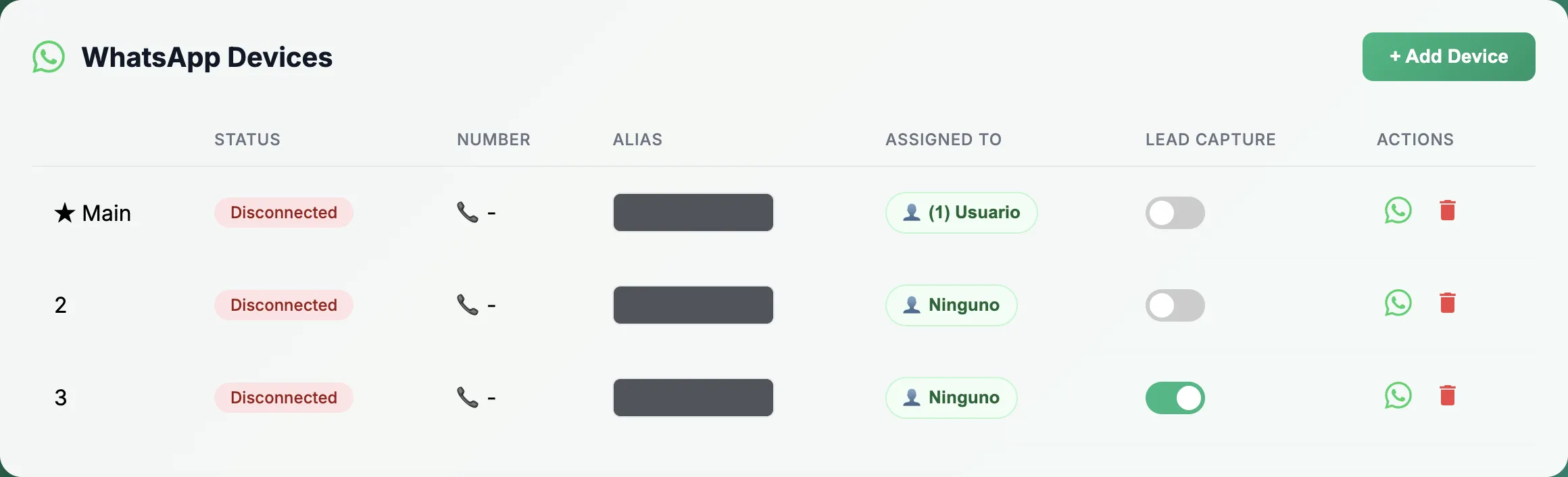
Example team setup
- Alex · Sales
- Assigned Sales device → Sales number
- Sam · Service
- Assigned Service device → Service number
- No applicable assignment
- Main online → otherwise another online device
User-based paths require GHL to identify the replying user. This is a rules illustration, not a product screenshot.
In this guide
Connect two numbers and assign your teamWhich WhatsApp number sends the reply?Check replies before your team goes liveChoose the right setup for your subaccountConnect two numbers and assign your team
Start with an active WhatsLevel subaccount connected to GHL, two WhatsApp numbers you control, and two GHL users. Keep a separate receiving phone available to check the actual sender. For the initial integration, follow our WhatsApp and GoHighLevel connection guide.
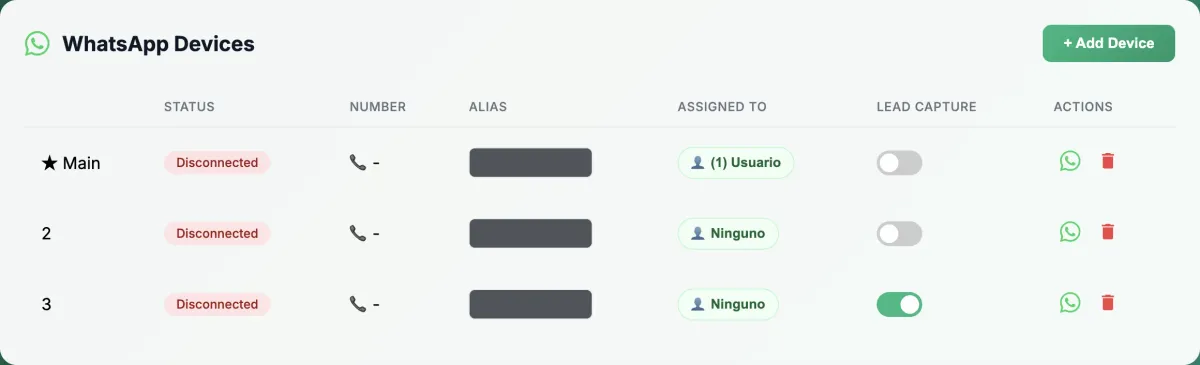
- Open the intended subaccount in WhatsLevel. Use + Add Device for each number and complete its WhatsApp connection.
- Give the devices clear aliases, such as Sales and Service. Confirm both show Online and note which is marked Main.
- Open Assigned To for Sales, select the GHL users who should send through it, and save. Repeat for Service.
- If a user is already assigned elsewhere, remove that assignment first. A user can belong to one device in the subaccount; several users can share a device.
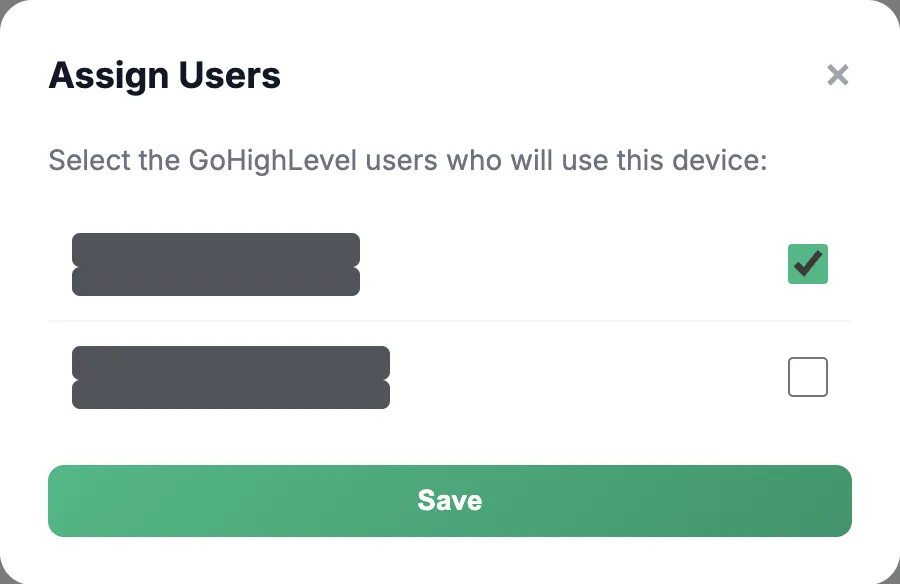
Example: Alex uses Sales and Sam uses Service. These are example roles, not customer results. WhatsLevel must receive the replying user's identity from GHL to apply that user's assignment. Verify the outcome on the receiving phone.
Which WhatsApp number sends the reply?
The sender depends on the applicable user assignment and device availability. The table describes WhatsLevel's outbound reply rules; it is not a rule for every GHL integration or workflow action.
| Situation | Expected behavior |
|---|---|
| Identified user assigned to Sales; Sales online | Uses Sales, even if Service is marked Main. |
| Identified user assigned to Service; Service online | Uses Service. |
| Assigned device disconnected | Does not substitute another number. If the assigned device cannot become available, the send fails. |
| No applicable user assignment; Main online | Uses Main. |
| No applicable user assignment; Main offline | Can use another online device. If none becomes available, the send fails. |
An unavailable device and a removed assignment are different. Removing an assignment can put future replies on the default sending path. Do not remove it just to troubleshoot a disconnected phone.
Check replies before your team goes live
Use the same test contact for both users. Record the user, expected sender and number shown on the receiving phone for each test.
- Reply as Alex, then Sam. Confirm Sales and Service respectively.
- Have the test contact message both numbers. Repeat both replies; do not assume the last incoming number controls the response.
- Test an unassigned user separately and check the default sender.
- In a dedicated test setup, check an unavailable assigned device. Confirm it does not send through the other number.
- Test each intended automation separately. WhatsLevel polls use Main or another online device rather than this user-assignment route.
If a reply uses the wrong number, check the replying user's assignment, whether GHL supplied that user's identity, and the device marked Main. If it fails, also check device status and account access. A device showing Online alone does not prove delivery.
Choose the right setup for your subaccount
Need several users on one number? Assign them to the same device. Need one user to switch between several sending numbers? This assignment model gives that user one device at a time.
Need separate conversations for each receiving number? Do not assume connecting two numbers creates separate GHL contact records or guarantees conversation isolation. Check the shared-contact scenario above against your required workflow.
Using HighLevel Coexistence? That is a different connection method. HighLevel's Coexistence guide, updated September 2, 2026, lists more than one number as unsupported. This does not mean every official API configuration has the same limit. WhatsLevel is a separate integration; these steps do not add numbers to native Coexistence.
This guide covers up to five devices within one WhatsLevel subaccount. Sharing one number across different subaccounts is a separate requirement and is not covered here.
Start with two numbers.
Connect your team and verify who sends each reply before rolling the setup out to clients.
Get started with WhatsLevel